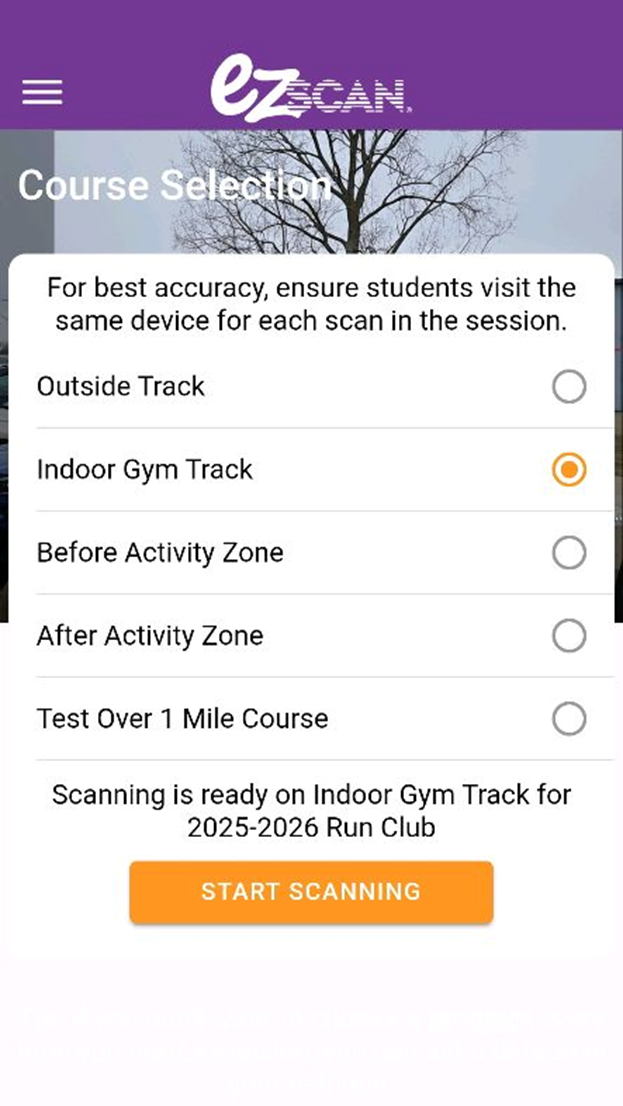
In the middle of a scanning session, the “Course Selection” menu takes over the screen.
Scanning is still possible, but the student names and mileage are unable to be seen.
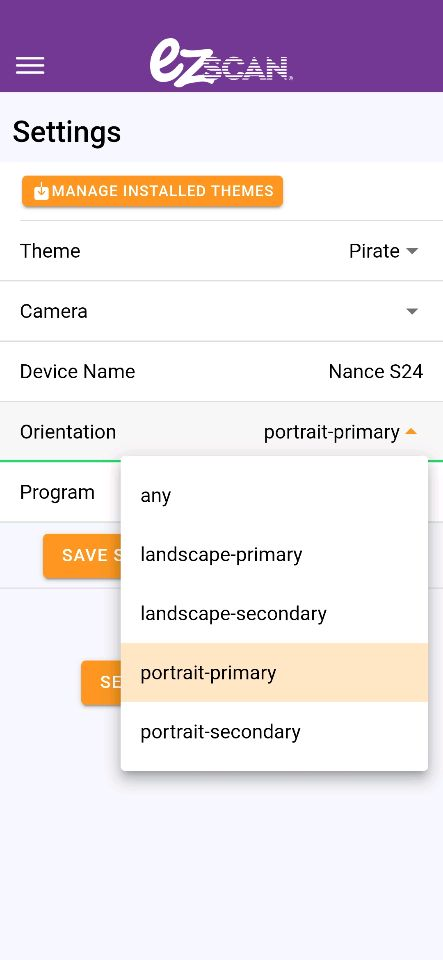
This can happen when the camera orientation isn’t set to a specific orientation option in the Settings menu, within the EZ Scan app.
To set the camera orientation for the EZ Scan app:
Please select a specific orientation option in the settings, within the app.
You can do this following the steps below.
1. Within the EZ Scan app, press the Settings button
2. Under the Orientation Menu, select either "Landscape-Primary" or "Portrait-Primary"
(do not select "any")
3. Press "Save Settings"
4. Press "Back to Home"
5. Start a session as usual and see if that resolves the issue on that device.