
If you're using a Chromebook, sending logs and data is slightly different than on a phone or tablet.
To send logs and data on a Chromebook, you are saving the files to your device and then emailing the files from your email address to us at no-reply@fitnessfinders.net
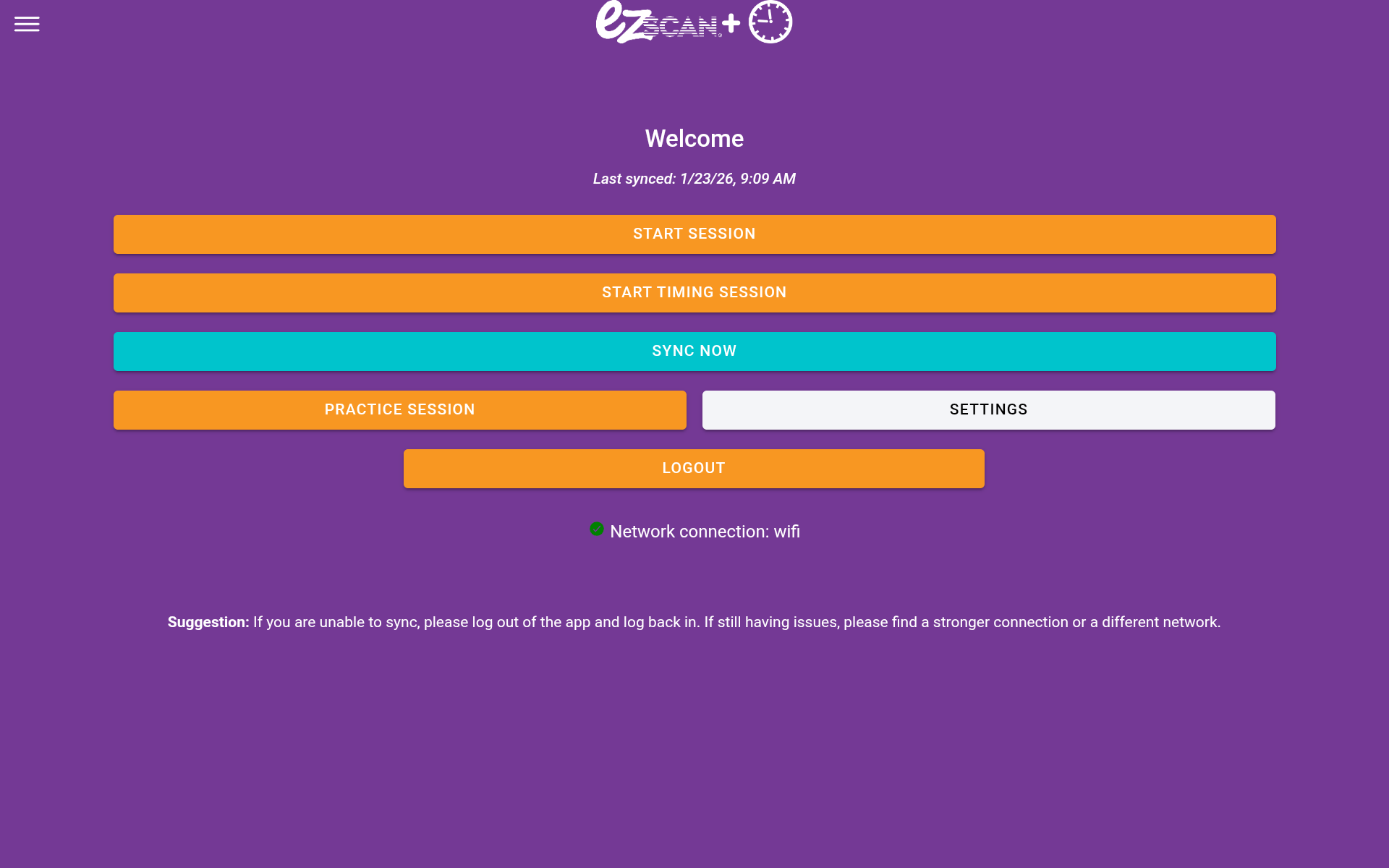
1. Go to the homepage of the app and click on Settings
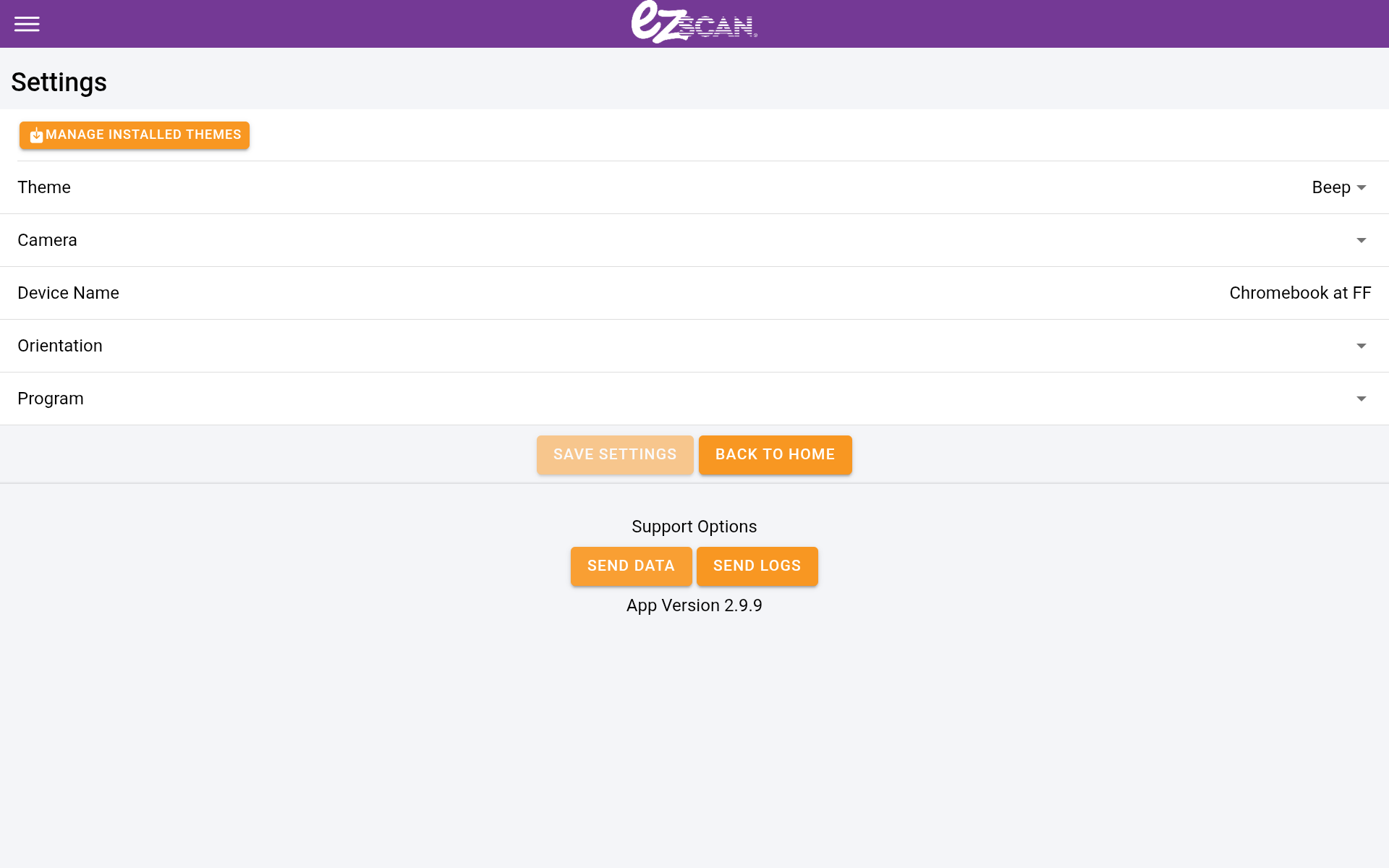
2. At the bottom of the Settings page, click Send Data and Send Logs
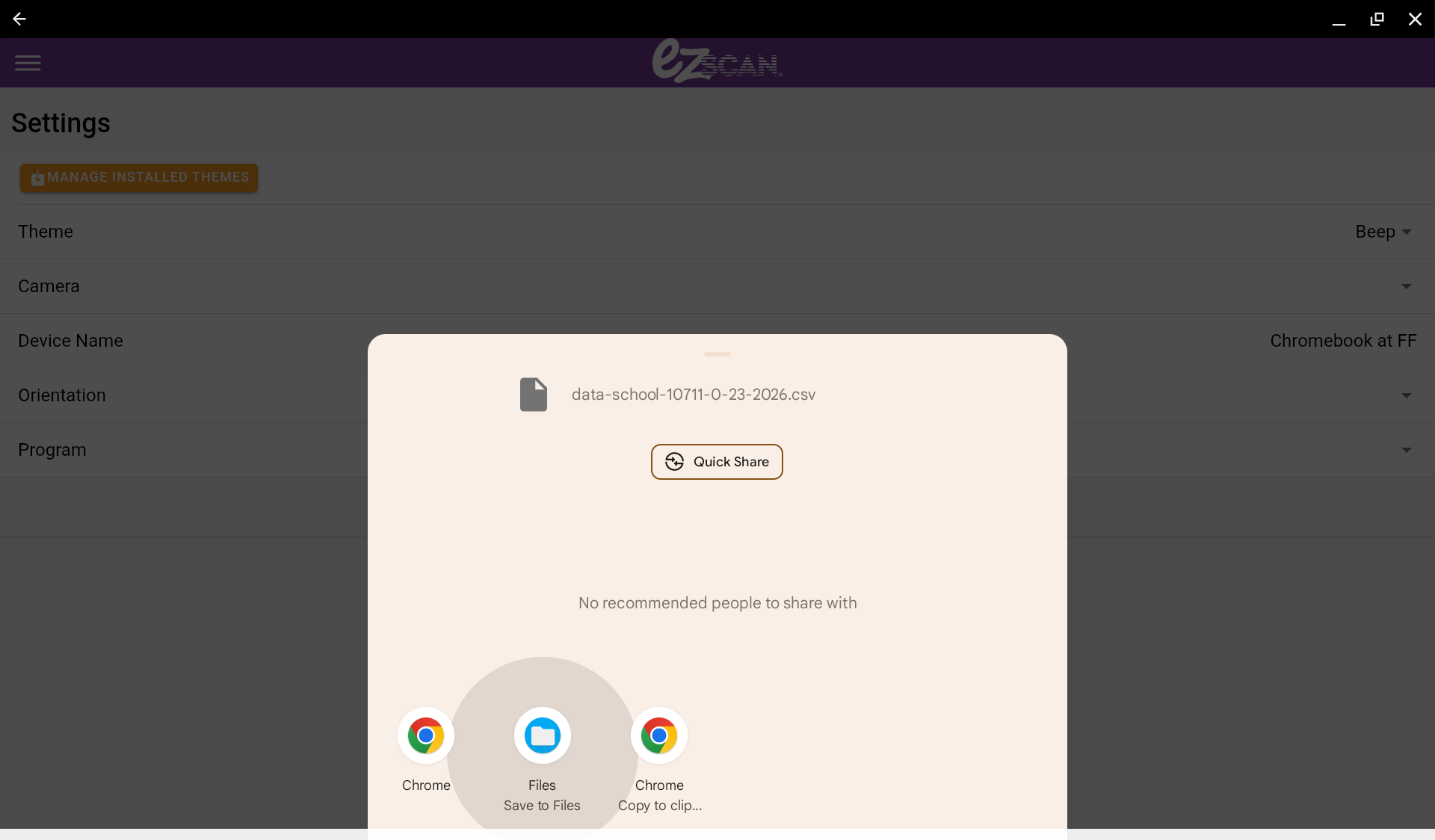
3. A pop-up will appear and you'll click "Files Save to Files"
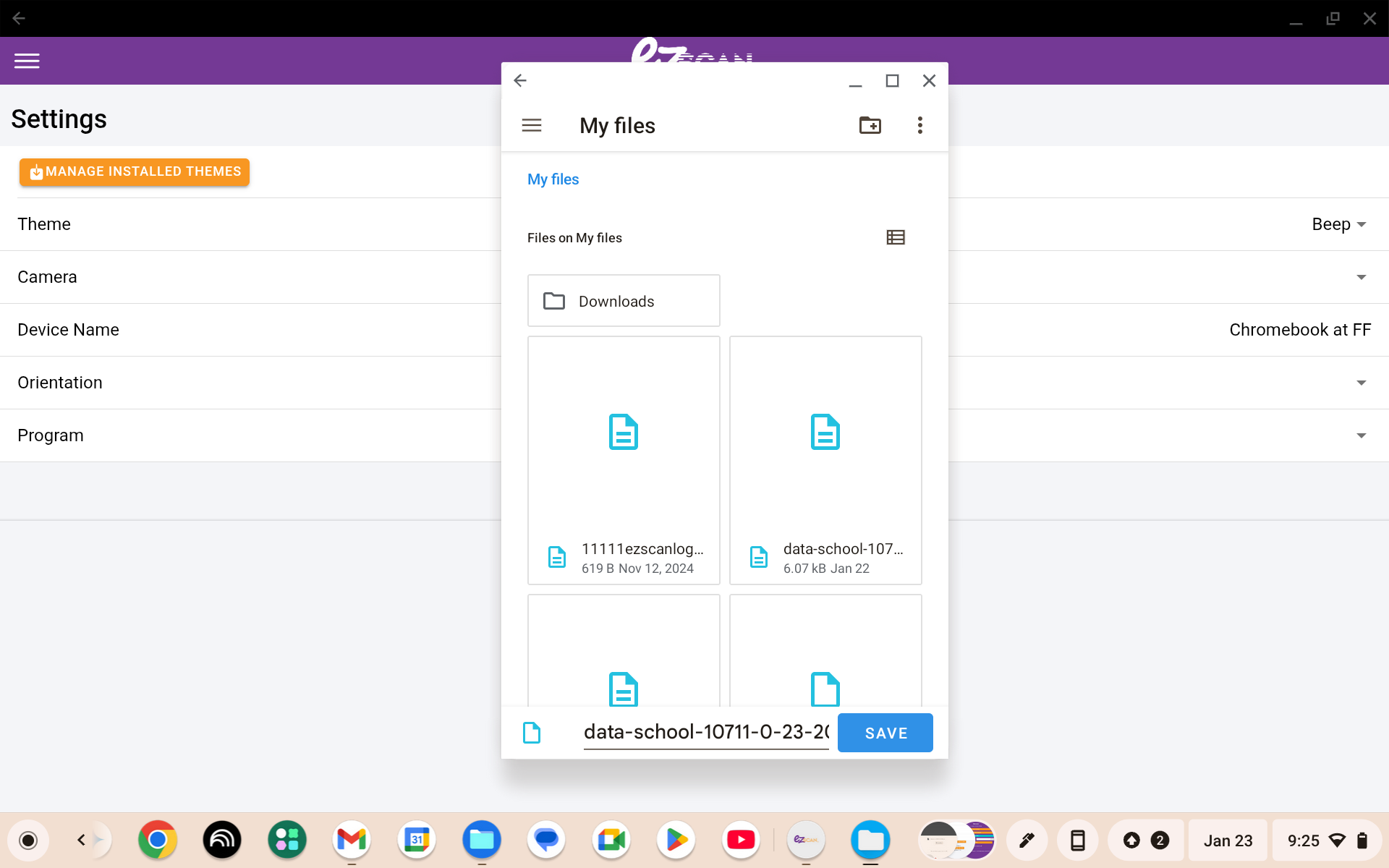
4. Click Save to save the data and log files to your device
5. Once you've saved the log and data files to your device, open your email account to attach the files and send the files to us at no-reply@fitnessfinders.net